
Not Enough Vulkan Guide: Toggle Animations, Entities, Particles, and Lighting to Boost FPS
Not Enough Vulkan is a performance-focused mod whose options are reached through its on-screen interface and adjusted with hotkeys, not through crafting. Its settings are organized around switching off or limiting expensive visual work — animations, particles, entity rendering, fog, and lighting — so weaker machines can hold a higher frame rate. This guide describes what each option does and how to operate it.
How to Open and Use the Options
The mod's features appear as toggles, sliders, and buttons in its video options interface. Open that interface, find the category you want, and click a toggle to turn it off or on. Sliders are dragged to set a value. A few options only take effect after you close and reopen the menu, or after restarting the game, as noted below. If an action has a hotkey, use the corresponding hotkey (set it in the controls menu).
Animations
These toggles decide whether animated textures are processed at all. Turning one off stops that animation from being drawn, which saves work every frame.
- Fire, Lava, Portal, Water, and
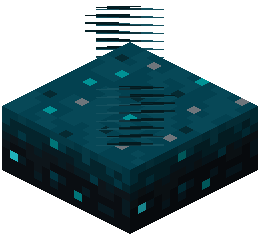 Sculk Sensor animations can each be switched off individually.
 - Block animations covers animated blocks generally.
- All animations is a single toggle that governs every animation at once.
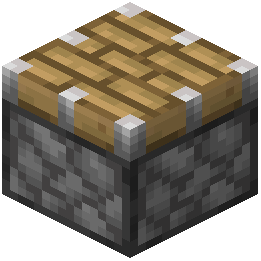 Piston controls piston extension animations.
- Enchanting Table Book controls the floating book above the enchanting table.
Particles
Particle toggles are the largest group here. Each one controls whether a specific particle type is processed; disabling a type means those particles no longer appear. The list covers effects such as campfire smoke (both cosy and signal), dripping and falling droplets for dripstone lava and water, honey, lava, and obsidian tears, spore blossom and leaf particles, dust color transitions, sculk charge and shrieker effects, trial spawner detection (normal and ominous), gust emitters (large and small), and many combat, movement, and ambient effects.
- All particles turns particle processing on or off as a whole.
- Block break and block breaking particles can be disabled separately.
- Rain splash particles have their own toggle.
Entities and Rendering
Several toggles remove whole rendered objects rather than animations.
 Armor stands,
  item frames,
  paintings, beacon beams, and rain and snow can each be turned off.
- Player name tags and item frame name tags can be hidden.
- Limit Beacon Beam Height keeps beacon beams within the world's maximum height.
- Advanced Item Tooltips adds an item's identifier and durability to its tooltip.
- Vanilla shader effects can be prevented from loading, which also removes effects like the spider-view distortion seen while spectating.
- Reduce Resolution on macOS uses half resolution on Retina displays; changing it requires a restart.
- Fullscreen Resolution sets the game's fullscreen resolution.
Fog and Lighting
Fog controls are mostly sliders. Multi Dimension Fog enables per-dimension fog sliders; if it is off, the Single Fog slider is used instead. After changing this option, close and reopen the menu so the fog sliders refresh. Fog distance values work as follows: 0 uses vanilla fog settings, 1–32 sets the distance in chunks, and 33 is the maximum distance, effectively disabling fog.
Individual fog sliders cover environment fog (start and end), terrain fog start, dimension or boss fog, lava fog, powder snow fog, underwater fog, sky blending, cloud blending, and the render-distance border fade. All fog toggles every fog effect at once.
For lighting, Light Updates processes lighting updates — disabling it can cause incorrect lighting when chunks generate, so only do so if you understand the impact. Light Updates Warning hides debug HUD warnings about light updates.
Overlay and Debug HUD
The overlay shows FPS and coordinates. You can choose which corner it appears in, show coordinates, show current FPS, and show extended FPS stats (maximum, average, and minimum). Its readability can be set to plain white text, a debug-style background, or text with a shadow. Steady Debug HUD Refresh refreshes the HUD at a fixed interval, and Steady Debug HUD Refresh Interval sets that interval in ticks.
Recommended Companion
A suggestion appears recommending Reese's Sodium Options alongside this mod. As the number of features grows, Sodium's video options screen becomes hard to navigate without it.