
Advanced Crafting and Logistics with Create Automation
This guide explores advanced automation techniques in Create, including crafting and logistics. Create offers tools and blocks for aesthetic automation, encouraging players to build animated contraptions rather than relying on UIs.
Automating Crafting Recipes
Setting up Mechanical Crafters
 Mechanical Crafters can automate any crafting recipe. To begin, arrange an array of Mechanical Crafters. Use a
  Wrench to configure their paths so that all paths converge into a single exit point on any side of the setup. The crafted items will be placed into an inventory positioned at this exit.
Mechanical Crafters require rotational force to operate. Items can be inserted manually by right-clicking the front of a crafter. Crafting starts once every slot within a path contains an item. For recipes that do not fully occupy the crafter setup, a Redstone Pulse can force the process to begin.
Automatic Crafting with Factory Gauges
 Factory Gauges provide automatic arrangement for crafting table recipes. Connect the necessary ingredients to the crafters as you would normally. When a valid recipe is detected, a new button will appear in the UI. With auto-arrangement active, items can be directly unwrapped into the crafters.
This setup must be a 3x3 arrangement, and the crafters must be connected using a Wrench. Hold right-click on the Factory Gauge to set the desired target amount for the crafted item. This crafter setup can then be used universally by multiple Factory Gauges for different recipes. To create a continuous loop, send the outputs back to a linked inventory. Using a 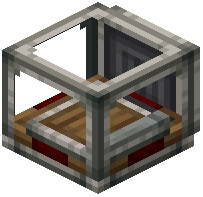 Re-packager is recommended to prevent input packages from becoming fragmented.
Managing Item Flow
Setting up Mechanical Arms
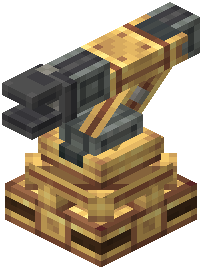 Mechanical Arms must have their input and output targets assigned before they are placed. To assign targets, right-click inventories while holding the Mechanical Arm. Right-click again to switch between an input target (indicated by blue) and an output target (indicated by yellow). Left-click on components to remove their selection. Once placed, the Mechanical Arm will interact with the previously selected blocks.
Mechanical Arms can have any number of input and output targets within their range. However, not all types of inventories can be directly interacted with. Funnels and 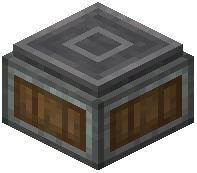 Depots can be used to bridge this gap.
Wireless Control and Monitoring
Using Redstone Links
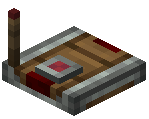 Redstone Links transmit redstone signals wirelessly. To toggle receive mode, right-click while sneaking, or simply right-click with a Wrench. Receivers will emit the redstone power from transmitters located within 256 blocks. Placing items into the two slots of a Redstone Link allows you to specify a frequency. Only links with matching frequencies will communicate with each other.
Monitoring with the Threshold Switch
Threshold Switches monitor the fill level of containers. When the content of an inventory exceeds its upper threshold, the switch will change its redstone output. This signal will persist until the lower threshold is reached. This redstone output can be used to control the supply of items, ensuring a buffer remains filled. The specific upper and lower thresholds can be adjusted in the UI. A filter can be applied to count only specific contents towards the total. Threshold Switches can also monitor fluid buffers and, curiously, the length of an extended  Rope Pulley.
Setting up Display Links
Display Links visualize dynamic information. First, right-click the target display, then attach the Display Link to the block you wish to read information from. Open the interface to select and configure the information to be sent. The display will then receive information from the link. Not every block can function as a source for a Display Link, but each compatible block provides unique information. Display Links can work with various types of displays.
Covers the mod’s in-game guide topics: Setting up Mechanical Crafters Automatic Crafting with Factory Gauges Setting up Mechanical Arms Using Redstone Links Monitoring with the Threshold Switch Setting up Display Links
 Threshold Switch
 Transmitter
 Packager