
Assigning Inputs, Outputs, and Filters for Create Mechanical Arms
Mechanical Arms in Create must be configured before placement, and understanding how to assign their targets, distribution modes, and filters is essential for building reliable automation. The configuration process happens entirely in your hand, so plan your setup before setting the Arm down.
Assigning Targets Before Placement
While holding a Mechanical Arm, you can assign its targets by interacting with inventories in the world.
- Right-Click an inventory to assign it as a target.
- Right-Click the same target again to toggle it between Input (Blue) and Output (Yellow).
- Left-Click a component to remove its selection entirely.
Once you place the Arm, it will target the blocks you selected previously. An Arm can have any number of inputs and outputs, as long as they fall within its range.
Not every type of inventory can be interacted with directly by a Mechanical Arm. Funnels and 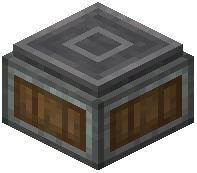 Depots can help bridge that gap, acting as intermediaries between the Arm and inventories it cannot reach on its own.
Distribution Modes
When a Mechanical Arm has to choose between multiple valid outputs, it follows its configured setting. The value panel on the Arm allows you to configure this behavior.
- Round Robin mode cycles through all available outputs in turn. If an output cannot accept more items, it is skipped.
- Forced Round Robin mode never skips outputs. Instead, it waits until a full output becomes free before continuing.
- Prefer First prioritizes the outputs that were selected earliest when the Arm was configured.
Choosing the right mode depends on whether you want even distribution, strict ordering, or priority based on selection order.
Filtering Outputs
Sometimes you want to restrict which targets an Arm can send items to by matching a filter. Mechanical Arms by themselves do not provide any filtering options.
 Brass Funnels used as targets do communicate their own filter to the Arm. This means you can set a filter on a Brass Funnel, and the Arm will respect it when deciding where to send items.
The Arm is also smart enough not to pick up items it could not distribute, which prevents it from grabbing items that have no valid destination among its configured outputs.
Redstone Control
Redstone power affects how Mechanical Arms operate.
- When powered by Redstone, a Mechanical Arm will not activate.
- Before stopping, it will finish any cycles it has already started.
Because of this behavior, a negative pulse can be used to trigger exactly one activation cycle. Cutting Redstone power briefly lets the Arm complete a single cycle before stopping again, giving you precise control over when it operates.
Practical Considerations
Setting up a Mechanical Arm well comes down to planning ahead. Decide which inventories serve as inputs and which serve as outputs before you place the Arm, since targets are assigned while the Arm is still in your hand. Use Funnels or Depots when a target inventory cannot be interacted with directly. Configure the distribution mode through the value panel to match how you want items spread across outputs. If you need filtering, place Brass Funnels as targets and set their filters, since the Arm itself offers no filtering options. Finally, remember that Redstone stops the Arm but lets it finish its current cycle, which makes pulse-based triggering possible.
Covers the mod’s in-game guide topics: Setting up Mechanical Arms Distribution modes of the Mechanical Arm Filtering Outputs of the Mechanical Arm Controlling Mechanical Arms with Redstone
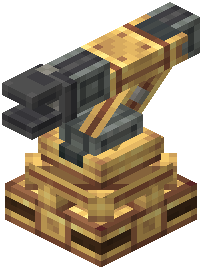 Mechanical Arm