
Capturing, Positioning, and Placing Structures with Schematics in Create
A  Schematic in Create holds a structure that you intend to position and place into the world. Rather than rebuilding a design block by block, you capture it once, adjust where it should go, and let a machine handle the construction. This guide covers what a Schematic does, how to position its Hologram, and how the building step fits together.
What a Schematic Does
A Schematic is the item that carries a stored structure. Once a structure is held inside it, the Schematic becomes the reference for both placement and construction. It does not build anything by itself — it simply holds the structure to be positioned and placed into the world.
The workflow has three stages:
- Capture the structure into a Schematic.
- Position the Hologram where you want the structure to appear.
- Use a
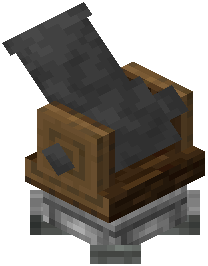 Schematicannon to build it.
Positioning the Hologram
The Hologram is the visual preview of the stored structure. It shows where the build will end up before any blocks are placed, which lets you check alignment, height, and orientation ahead of time.
Position the Hologram as desired before starting construction. The Schematic can be positioned using the Tools on Screen, so you can nudge the preview into the exact spot you want rather than guessing coordinates.
Getting the Hologram right matters because the Schematicannon builds according to where that preview sits. Move it first, confirm it looks correct, and only then move on to construction.
Building with the Schematicannon
Once the Hologram is positioned, the Schematicannon is the block that actually places the structure into the world. Point it at the positioned Hologram and let it work.
The division of labor is straightforward:
- The Schematic stores the structure.
- The Hologram shows where it will go.
- The Schematicannon performs the build.
Practical Order of Operations
Following a consistent order avoids wasted effort:
- Prepare the structure you want to reproduce.
- Capture it into a Schematic.
- Place the Schematic and position the Hologram using the Tools on Screen.
- Check the preview carefully — position it as desired before building.
- Set up a Schematicannon and let it build the structure.
Because the Hologram is only a preview, repositioning it costs nothing except time. Adjust it as many times as needed before committing to the build.
Notes on the Mod
Create is a mod offering a variety of tools and blocks for Building, Decoration, and Aesthetic Automation. Its tech elements are designed to leave as many design choices to the player as possible, and the game is not played inside a bunch of UIs — instead, it challenges you to set up contraptions of animated components working together in many possible arrangements.
Create includes visual in-game documentation called Ponder, which guides you through all added mechanics and gadgets. If you want to see the recipes required in Create, consider installing JEI, since the vanilla recipe book will not be able to guide you through the experience by itself.
For loaders, this version of Create runs on Forge and NeoForge, so install one of these before adding Create to your game. A ported project compatible with the Fabric ecosystem is also available. As of 0.5.1, the rendering library Flywheel no longer has to be installed separately.
Summary
A Schematic holds a structure to be positioned and placed into the world. Position the Hologram as desired using the Tools on Screen, then use a Schematicannon to build it. Those three pieces — the stored structure, the positioned preview, and the building machine — are all you need to reproduce a build accurately.
Covers the mod’s in-game guide topics: Schematic