
Setting Up and Managing Create Train Networks
This guide explains how to set up and manage intricate train networks for large-scale transport using Create.
Placing Train Tracks
 Train Track is a new type of rail designed for train contraptions. To place a row of tracks in bulk, click on an existing track, then place or select a second track. Tracks can be placed as turns or slopes. When connecting, tracks will attempt to make each turn equally sized. Holding the sprint key while connecting tracks will create the longest fitting bend instead. Materials held in your off-hand will automatically pave under the tracks.
Assembling Trains
To begin, select a Train Track and place a Station nearby. Stations serve as waypoints within your track network. To create a new train, open the UI and switch to Assembly Mode. During this mode, no scheduled trains will approach the station.
Create new bogeys by using 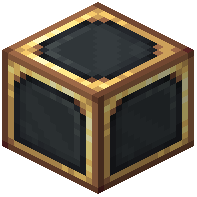 Train Casing on tracks. Click the track again to cycle between different bogey designs. Attach blocks to your train using
  Super Glue. Every train requires
 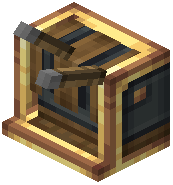 Train Controls on board. An optional second set of Train Controls allows the train to depart from stations in both directions. Assembled trains will move faster if they can find fuel in assembled chests or barrels. Fuel stored in
  Vaults will not be consumed by the train.
Controlling Trains
Once a train is assembled, right-click the Train Controls block to begin driving. Accelerate and steer the train using your movement keybinds. The top speed can be fine-tuned using the mouse wheel. Hold space to approach a nearby Station. Trains can only be disassembled back into blocks at Stations. Assembled Whistles can be activated with the sprint key. To stop controlling the train, sneak or click the Train Controls again.
Collision Prevention with Signals
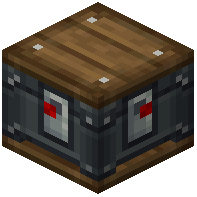 Train Signals divide a track into segments. If a segment is occupied by a train, no other trains will be allowed to enter it, ensuring each segment contains only one train at a time.
A second signal mode is available by using a  Wrench on a signal. Segments controlled by a brass signal usually lead into standard signals. This special signal can stop trains under an additional condition: it will stop trains that, upon entering the segment, would not be able to leave it immediately. This helps to keep queued trains out of a busy segment.
Using Train Schedules
Schedules allow trains to be controlled by other drivers. Right-click with the Schedule item in hand to open its interface. Once programmed, the schedule can be given to a Train Driver. Any mob or blaze burner sitting in front of Train Controls is an eligible conductor. Creatures on a lead can be given their seat more conveniently. Schedules can be retrieved from drivers at any moment.
Transporting Packages with Postboxes
Right-click a 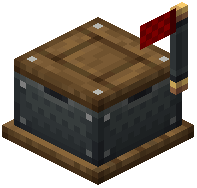 Train Station and place a Postbox nearby. Assign the Postbox an address in its inventory UI. If an inserted package's address does not match the Postbox's address (e.g., a package addressed "Warehouse" at an "Outpost" Postbox), trains stopping at the station will collect it as cargo. Conversely, packages matching the Postbox's address (e.g., a package addressed "Warehouse" at a "Warehouse" Postbox) will be dropped off. Packages that arrived by train can be taken from the Postbox. Postboxes maintain their behavior in unloaded chunks, just like trains.
Covers the mod’s in-game guide topics: Assembling Trains Placing Train Tracks Controlling Trains Collision Prevention with Signals Using Train Schedules Transporting packages between Postboxes
 Train Schedule